Twinpane documentation
Twinpane user guide
Choose a topic to see instructions for using Twinpane’s file management tools and storage connections.
Before you begin
Get to the useful part quickly
Start with two folders, then use the guide when you need a deeper workflow. The topics cover local files, mounted shares, S3 storage, search, sync, and safe file operations.
- Compatibility
- Both
- Guide topics
- 12 topics
- Best for
- Files and storage
Step 1
Activate
Sign in with the account used for purchase and verify the licence.
Step 2
Choose folders
Open a folder in each pane so the workspace has a clear source and destination.
Step 3
Build your flow
Use tabs, search, sync, terminal, and inspection tools as your work grows.
Topic 1 of 12
Getting started
Install Twinpane, activate your licence, and choose folders for both panes.
- Install and open Twinpane on your Mac.
- In the licence prompt, choose Activate / Verify. Verification requires an internet connection and the CloudBridge account used for purchase.
- Choose a folder for each pane. Use the folder button or choose File → Choose Folder.
Twinpane is available for Both; macos 13 or later and 4 gb ram. It is US$29.90 once for a permanent licence on two devices.
Capabilities
Twinpane at a glance
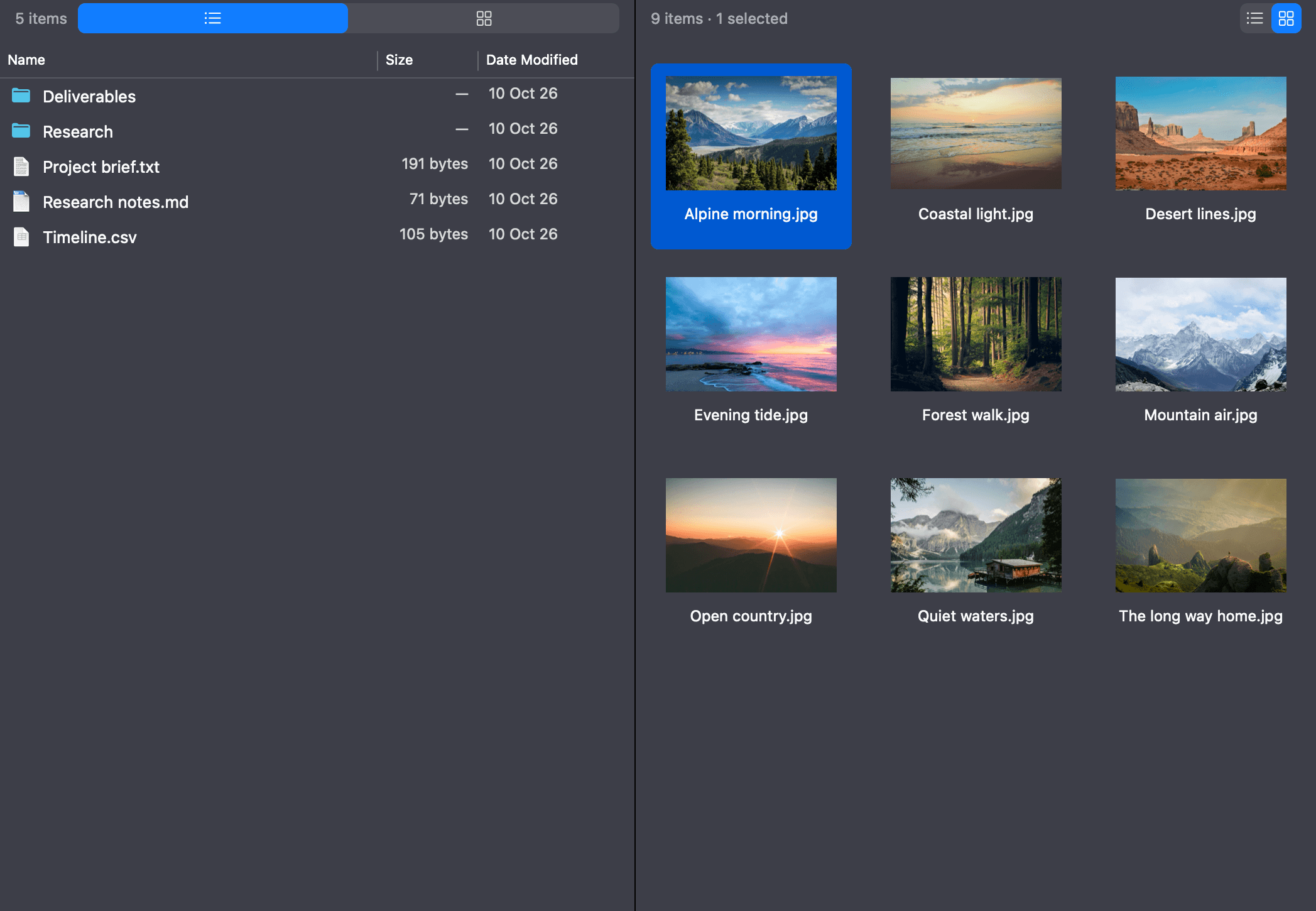
- Compare and move files in two side-by-side panes
- Keep folders organized with tabs
- Open a terminal and inspect file details in the same window
- Browse local, network, and cloud locations
- List, grid, and tree views
- Sort by name, size, or modified date
- Filter and search with text and wildcard patterns
- Show hidden files and select by pattern, kind, or tag
- Save favourite folders and drag folders into favourites
- Save and restore named workspaces
- Create folders, copy, move, rename, and batch rename files
- Tag files and move items to Trash
- Resolve destination conflicts by keeping both, skipping, replacing, or cancelling
- Queue file operations and retry or cancel pending work
- Collect items in the Drop Stack
- Preview files with Quick Look
- Change permissions when the current user has access
- Compare selected files and compare folder contents
- Sync from one pane to the other and save sync configurations
- Open a terminal in either pane's current folder
- Connect to SMB, FTP, FTPS and WebDAV servers
- Connect to AFP servers
- Browse S3 buckets and upload, download, or delete objects
- Connect to TrueNAS and browse directories
- Choose System, Light, or Dark appearance
- View license status and start a trial, activate, or verify a license
- Copy to Other Pane
- Move to Other Pane
- Move to Trash
- New Folder
- Rename
- Go to Folder
- Add to Favorites
- Filter This Folder
- Show Hidden Files
- Show Drop Stack
- New Tab
- Close Tab
- Toggle Sidebar
- Toggle Inspector
- Show Operations
- Focus Left Pane
- Focus Right Pane
- Parent Folder
- Open Selection
- Quick Look
- Compare Selected Files
- Cancel Pending Items
- Select by Kind
- Select by Pattern
- Select by Tag
- Set Tag
- Save Workspace
- Load Workspace
- Save Sync Configuration
- Run Saved Sync
- Start Sync
- Connect to Server…
- Connections…
- Close Session
- Close Terminals
- Choose Folder…
- Open in Finder
- Undo the last file operation
- Cut files to the clipboard
- Paste files into the current folder
- Select All
- Start Free Trial
- Activate / Verify
- Deactivate
- Purchase License
- Inspect file details with a preview and tags
- Browse WebDAV folders and download a file
- Terminal console via ConPTY